How to Customize Your Canva Wedding Invitation Template: A Complete Guide
share


Your wedding invitations set the tone for your entire celebration. With our editable Canva templates, you can create professional, hand-illustrated wedding stationery without expensive design fees or weeks of back-and-forth with a designer. Here’s everything you need to know about customizing your Canva wedding invitation template from start to finish.
Getting Started with Your Template
After purchasing your template from Illustrated Weddings, you’ll receive a PDF download with direct links to all your Canva templates. The best part? Everything works with Canva’s free plan—no paid subscription required.
Simply click the link for each piece you want to customize (invitation, save the date, RSVP card, etc.), and Canva will open the template in your browser.
Creating Your Canva Account:
If you don’t already have a Canva account, you’ll be prompted to create one for free at canva.com. This takes about 30 seconds.
Important tip: Sign up with your regular email address or Google login. If using Apple ID, we recommend choosing “Share My Email” rather than “Hide My Email” to avoid any template access issues.
Need Help? Canva Has You Covered
Canva provides extensive support resources if you get stuck:
- Canva Help Center: Searchable articles and guides for every feature (https://www.canva.com/help/)
- Canva YouTube Channel: Video tutorials covering everything from basics to advanced techniques
- In-app tutorials: Canva often provides pop-up tips as you work
These resources are incredibly helpful for learning specific techniques like using the color picker, adjusting layers, or working with grids and alignment.
Step 1: Edit Your Text
The first customization most couples make is updating the wedding details. Here’s how:
Click on any text element to select it and start typing your information. You’ll want to update:
- Your names
- Wedding date
- Ceremony and reception times
- Venue name and address
- RSVP deadline and contact information
- Any special instructions for guests
Pro tip: For a polished look, keep your text consistent across all pieces in your suite. If your invitation says “Saturday, the Twenty-Seventh of June,” your RSVP card should match that formal style rather than using “June 27.”

Step 2: Change Your Colors
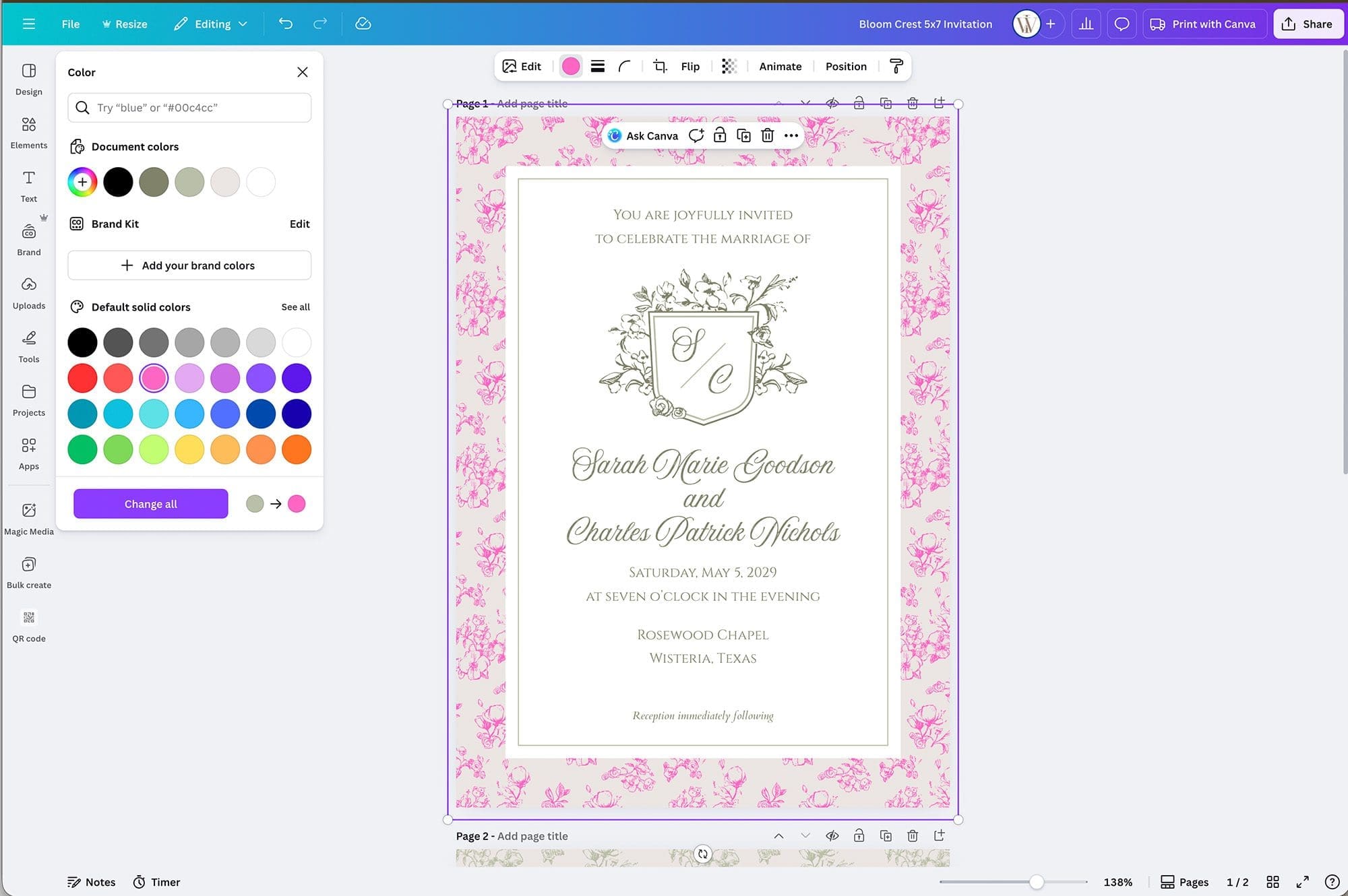
This is where the magic happens. Our hand-drawn patterns and illustrations can be customized to match any wedding color palette—not just the original design colors.
To change text colors:
- Click on the text you want to modify
- Look for the color box in the toolbar at the top
- Click it to see color options
- Choose from suggested colors or click the “+” to enter a custom color code
To change background and pattern colors:
- Click on the design element (like our hand-drawn damask pattern or botanical border)
- Select the color box in the toolbar
- Choose your new color
You can transform black and gold into navy and rose gold, dusty blue into emerald and copper, or any combination you can imagine. The hand-drawn artwork stays intact while the entire color scheme shifts to match your wedding aesthetic.
Color matching tip: If you have a specific color from your wedding (like a bridesmaid dress swatch or venue photo), you can use a free online color picker tool to get the exact hex code, then paste it into Canva’s custom color field.
Step 3: Adjust Your Fonts
While our templates use carefully selected font pairings, you might want to match fonts to other wedding elements like your website or programs.
To change fonts:
- Select the text you want to modify
- Click the font dropdown in the toolbar (it shows the current font name)
- Browse Canva’s font library or search for a specific style
- Click your choice to apply it
Font pairing suggestions:
- For formal elegance: pair a script font for names with a classic serif for details
- For modern minimalism: use a clean sans-serif throughout
- For romantic gardens: combine a delicate script with a simple, readable body font
Most of Canva’s fonts are free, though some premium options are marked with a crown icon. Stick with free fonts to keep your template costs low, or try Canva Pro’s 30-day free trial if you fall in love with a premium option.

Step 4: Add Your Photos
Our save the date templates include layout options for engagement photos. Adding your image is simple:
To replace placeholder photos:
- Click “Uploads” in the left sidebar
- Upload your engagement photo
- Click on the existing photo in the template to select it
- Delete it (press Delete key or click the trash icon)
- Drag your uploaded photo from the Uploads panel onto the template
- Resize and reposition as needed
Alternative method:
- Upload your photo to Canva first
- Drag your new photo directly on top of the existing placeholder photo
- Canva will replace it automatically while maintaining the size and position
Photo tips for best results:
- Use high-resolution images (at least 1500 x 2000 pixels)
- Choose photos with good lighting and clear focus
- For photo overlays, pick images with space for text
- Test your design by zooming in to ensure photo quality holds up when printed
Step 5: Customize Layouts and Design Elements
Want to make the template truly yours? Here are some ways to personalize further:
Rearrange elements: Click and drag any design element to reposition it. Canva shows alignment guides to help keep everything balanced.
Resize elements: Click on an element and drag the corner handles to make it larger or smaller. Hold Shift while dragging to maintain proportions.
Add new elements: Use the Elements tab in the left sidebar to add:
- Borders or frames
- Decorative flourishes
- Monogram elements
- QR codes linking to your wedding website
Remove elements you don’t need: Simply click and press Delete. For example, if you don’t need a reception time because it’s immediately following the ceremony, you can remove that line.
Step 6: Work with Envelope Templates
Our templates include both front guest addressing and back return addressing for your envelopes. Here’s how to make the most of them:
For guest addressing:
- Type in each guest’s name and address
- Center the text for traditional elegance
- Consider printing a test sheet before committing to your final envelopes
For return addressing:
- Add your names and address
- Many couples prefer to skip titles (Mr. & Mrs.) on the return address for a more modern feel
- This goes on the back flap of your outer envelope
Printing tip: Before printing directly on expensive envelopes, print on regular paper first to ensure your alignment is perfect.
Bulk Addressing: Save Hours of Work
One of the biggest time-savers for DIY brides is Canva’s bulk create feature for envelope addressing. Instead of manually entering each guest’s address one by one, you can upload a spreadsheet and automatically generate all your addressed envelopes at once.
Here’s how it works:
- Create a spreadsheet with columns for guest names and addresses (Excel, Google Sheets, or CSV)
- Open your envelope template in Canva
- Click “Apps” in the left sidebar
- Search for “Bulk Create” and select it
- Upload your spreadsheet and map the columns to the text fields in your template
- Generate all envelopes automatically with each guest’s information
This feature can address 50, 100, or even 200+ envelopes in minutes instead of hours. You’ll get a multi-page Canva file with one envelope per page, each personalized with the correct guest information.
Pro tip: Test this feature with just 3-5 addresses first to make sure your formatting looks right before generating your entire guest list.
For detailed step-by-step instructions, visit the Canva Bulk Create Help Center.
Step 7: Download Your Finished Designs
Once you’re happy with your customizations, it’s time to download print-ready files.
For best printing results:
- Click “Share” in the top right corner
- Select “Download”
- Choose “PDF Print” as your file type (not PNG or JPG for invitations)
- Select “PDF with crop marks and bleed” if you’re trimming cards yourself
- Click “Download”
PDF Print ensures your designs maintain the highest quality and correct dimensions for professional printing.
What to download:
- Wedding invitation (front and back if you’re using the patterned back option)
- Save the date
- RSVP card
- Details card
- Envelope templates
Keep all your files organized in a folder on your computer labeled with your wedding date.
Printing Your Invitations
Now that your designs are complete, you have several printing options:
At-Home Printing:
- Use quality cardstock (100-110 lb recommended, avoid heavier than 120 lb as it may jam printers)
- Print on letter or legal-sized cardstock, then trim to size using crop marks as guides
- Most inkjet and laser printers work well
- Smooth matte finish papers print crisper than textured papers
- White or natural (off-white) papers showcase the designs best
Online Print Services: Services like Vistaprint, Moo, Prints of Love, Minted, or Canva Print allow you to upload your PDFs and select paper quality and finish. These services handle the printing and shipping.
Local Print Shops: Take your PDF files to FedEx Office, Staples, Office Depot, or UPS Store. Ask for cardstock printing in the 100-110 lb weight range.
Professional Stationery Printers: For the highest quality, work with a local print shop that specializes in stationery. They can print on luxury papers and add special finishes like letterpress, foil stamping, or edge painting.
Pro tip: Always order a sample print first to check colors and paper quality before printing your full order! Colors can look different on screen versus printed, and this small investment can save you from costly mistakes.
Our templates are sized at standard dimensions (5 x 7″ invitations, 4.25 x 5.5″ RSVP cards, etc.) so they’ll work with any printer you choose.
Troubleshooting Common Questions
Can I change the hand-drawn patterns?
The patterns themselves stay intact for the best design quality, but you can change their color to any shade you like. You can also layer solid shapes over sections if you want to minimize pattern visibility in certain areas.
Do I need Canva Pro?
Not at all! Our templates work perfectly with Canva’s free plan. All fonts and design elements are included in the free version.
What if I make a mistake?
Canva has unlimited undo! Just press Ctrl+Z (Windows) or Cmd+Z (Mac) to step backward through your changes. You can also duplicate your template before making major changes to preserve the original.
Can I create multiple versions?
Absolutely. You can create separate Canva files for different guest groups (ceremony vs. reception-only invites) or alternate color schemes. Simply click “File” then “Make a copy” to duplicate your template.
How many times can I print these?
Unlimited! Print as many copies as you need for your wedding.
Can I get a refund if I don't like the template?
Digital products are final sale once accessed, as you receive immediate access to the Canva templates. We recommend reviewing the design preview carefully before purchasing.
What if I need help with Canva features?
Visit the Canva Help Center or the Canva YouTube channel for comprehensive tutorials. If you have questions specific to your Illustrated Weddings template, message us through Etsy—we’re here to help!
How do I maintain consistency across all pieces?
Create a simple style guide for yourself: note your exact color codes, font names, and text sizing. Apply these same specifications to every piece in your suite for a cohesive look.
Tips from 15+ Years of Wedding Design
After creating thousands of custom wedding invitations, here’s what we’ve learned about DIY success:
Start with your invitation. Perfect this piece first, then carry those same styling choices (colors, fonts, spacing) to your other pieces. This ensures everything matches.
Print test sheets. Before committing to your final printing, run tests on regular paper to check alignment, color accuracy, and overall layout. Colors can look different on screen versus printed.
Leave breathing room. Don’t overcrowd your design with too much text or too many graphic elements. White space makes your invitations feel more luxurious and easier to read.
Triple-check details. Have multiple people review your invitations before printing. Check spelling, dates, times, and addresses. We’ve seen couples print 150 invitations with typos—don’t let that be you!
Allow plenty of time. Customizing your templates might take a few hours as you perfect every detail. Factor in time for printing, assembly, addressing, and mailing (invitations should go out 6-8 weeks before your wedding).
Envelope sizing matters. Your designs fit standard envelopes available at any stationery store:
- A7 envelopes (5.25 x 7.25″) for Wedding Invitations and Save the Dates
- A2 envelopes (4.375 x 5.75″) for RSVP Cards
- Details Cards are typically tucked inside your invitation envelope—no separate envelope needed
Consider envelope printing carefully. Lighter colored envelopes work best for printing guest addresses. Avoid printing white text on dark envelopes as this can cause mail delivery issues. Colored envelopes can add personality, but make sure your printed text has good contrast.
Don’t forget postage! Take a fully assembled invitation (with all inserts, ribbons, or wax seals) to USPS to determine the correct postage. Only use official USPS stamps for reliable delivery, and don’t forget to stamp the RSVP envelope you’re including with each invitation. Bulky items like ribbons or wax seals may require extra postage.
Making It Uniquely Yours
The beauty of working with Canva templates is that you get professional, hand-illustrated design as your foundation, then make it completely your own. You’re not starting from scratch or settling for generic clipart—you’re working with original artwork created over 15+ years of luxury wedding design.
Some couples keep their customizations minimal, changing just colors and text. Others go further, adding photos, rearranging layouts, and incorporating personal touches like custom monograms or meaningful quotes. There’s no wrong approach as long as your final design reflects your celebration and feels authentic to you as a couple.
Ready to Get Started?
Browse our complete collection of wedding invitation templates to find the perfect design for your celebration. Every template includes everything you need: invitation, save the date, RSVP card, details card, and envelope addressing templates—all fully customizable in Canva’s free plan.
Have questions about customizing your template? We’re here to help! Contact us through our website and we’ll guide you through any challenges you encounter.
Your dream wedding invitations are just a few clicks away.